

Dataggo - Connect PlatformDataggo - Connect Platform
    • Introduction
    • Launch a job
      • SAML configuration
      • Entra ID (Azure)
      • Google Workspace
      • How to connect
      • Metaproperties
      • Filtering
      • Events
      • How to connect
      • How to find technical identifier
      • How to connect
    • Introduction
    • Send assets and link to products
    • Which job(s) do you need ?
    • Create options in Bynder
    • Send assets to your asset families
    • Link your assets to your products
    • Enrich your asset metaproperties
    • Remove archived assets
    • Category - add assets in your template
    • Ref Entities - Link assets in your records
    • Product Mapping - Metadata Configuration
    • Introduction
    • Installation
      • General
      • Product images mapping
      • File collection mapping
      • Use DAT URL in Shopify
      • Remove archived assets
    • Introduction
    • Extract with Regular Expressions
    • Common Actions
    • Concatenate fields with pattern
    • Value Mapping
Shopify

How to connect

How to install the Shopify app

To connect your Shopify Store with the Connect platform, you will need to install the Shopify application.

Go to the Shopify App Store
Click on Add App. This will redirect you to the installation screen.
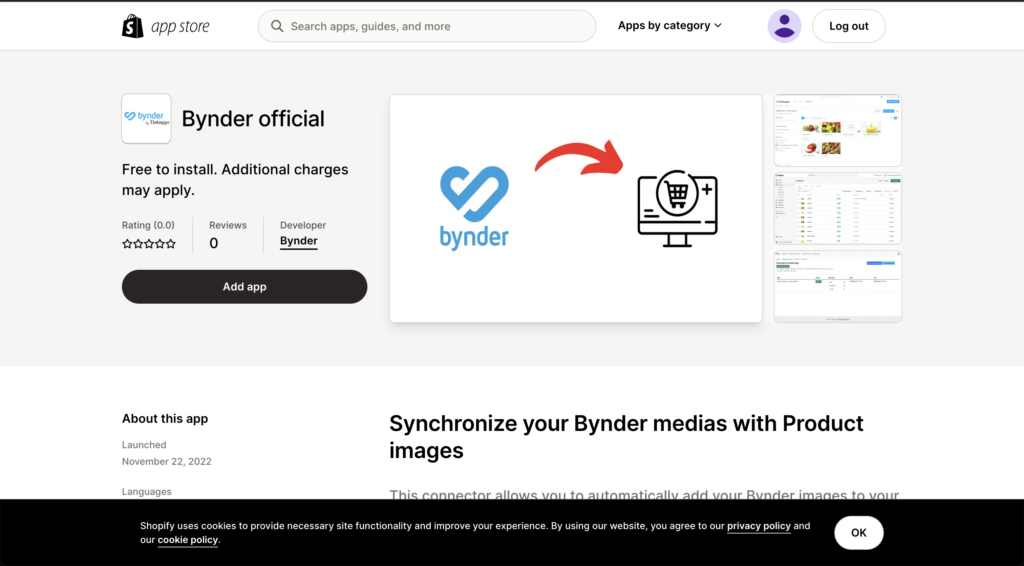
Shopify app store

Then click on Install app. Shopify will request confirmation to install the app in your store.
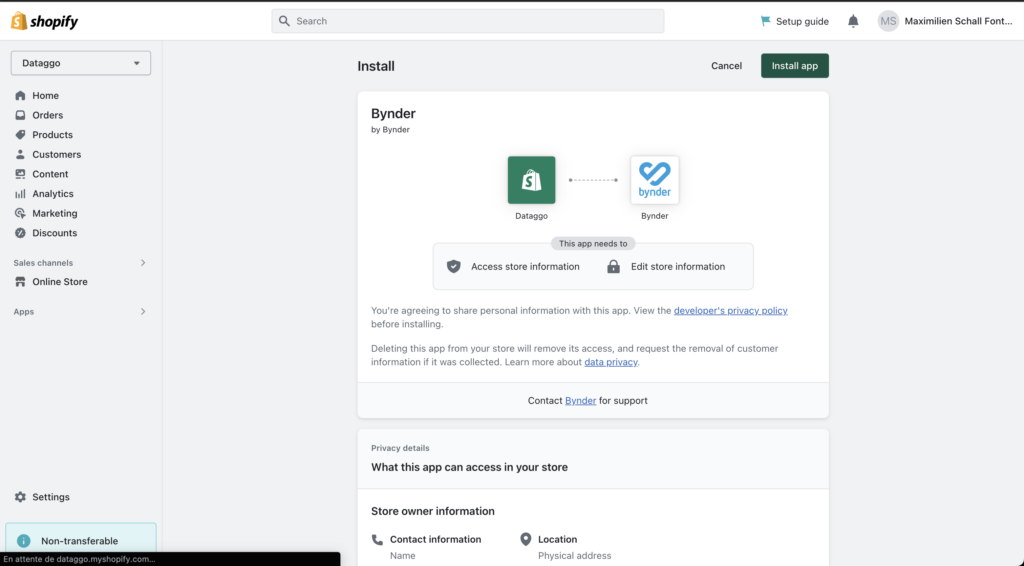
Shopify app installation

Use your Connect Platform account to log in.
Once logged in, the connection will be established automatically.
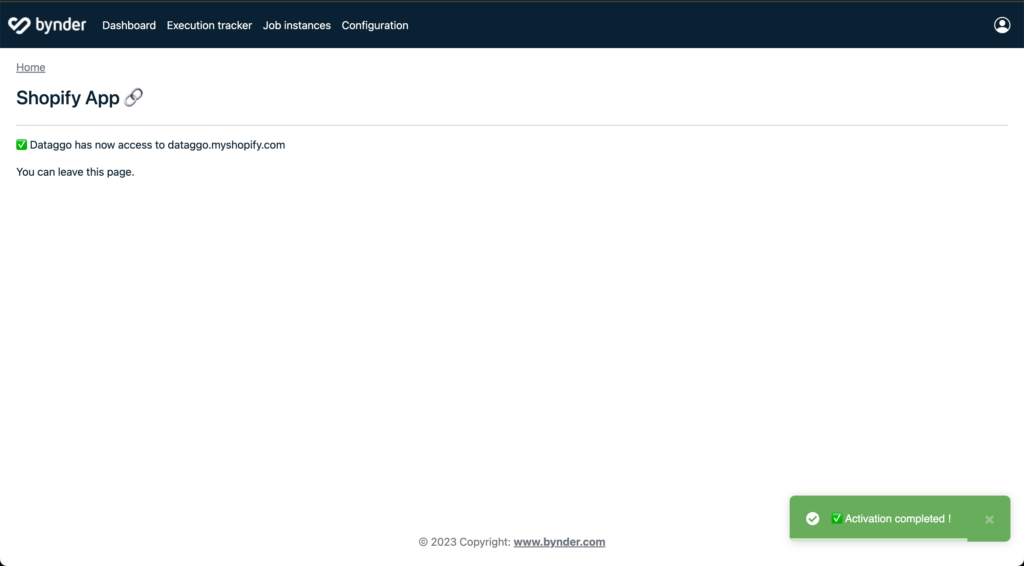
Shopify app final step

How to find technical identifier

Introduction

Welcome to the Bynder x Akeneo documentation.

Copyright © 2026. All rights reserved.