
Link Your Assets to Your Products
Feature availability: This feature is available in the following jobs:
- Bynder x Akeneo — Bynder medias to Akeneo assets (Bynder Akeneo Connector)
- Akeneo — Asset/Product multi binding (Bynder Akeneo Connector)
Importing assets into Akeneo is a valuable first step, but automatically linking them to products saves significant time. The connector lets you configure multiple binding rules, each applicable to one or more Akeneo asset families.
Binding Methods
Akeneo Native Product Link Rules
Akeneo's built-in Product Link Rules provide basic asset-to-product binding. This approach is straightforward but has notable limitations:
- Cannot bind a single asset to multiple products simultaneously
- Does not support complex filtering conditions
→ Learn more about Akeneo Product Link Rules
Connector Multi-Binding
For more advanced requirements, the connector's multi-binding feature offers greater flexibility:
| Capability | Description |
|---|---|
| Enhanced filtering | Apply specific criteria to control which products assets are linked to |
| Multiple product attributes | Bind a single asset to several product attributes at once |
| Conditional removal | Automatically unlink assets when conditions no longer match |
| Locale & channel binding | Restrict bindings to specific locales or channels |
Configuring Multi-Binding
You can define one or more multi-binding configurations. Typically one per asset family, though multiple configurations per family are supported.
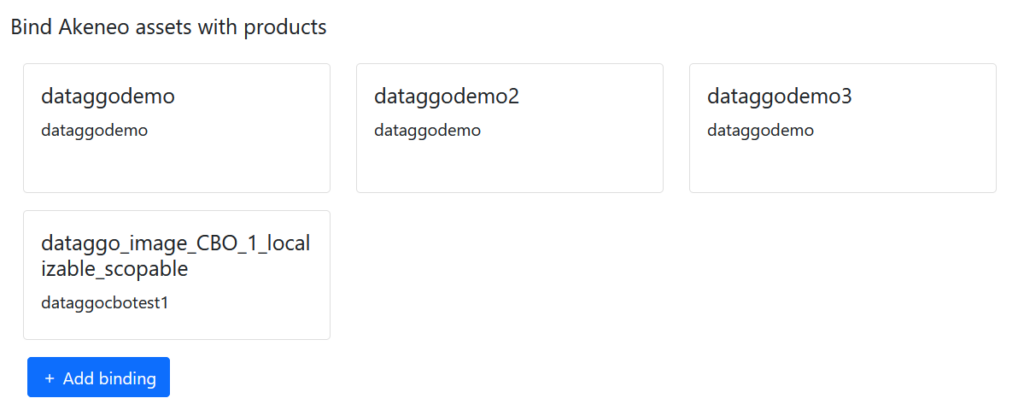
Each binding rule supports both static and dynamic parameters. Dynamic parameters are wrapped in {{ }} — remove the braces to use a static value instead.
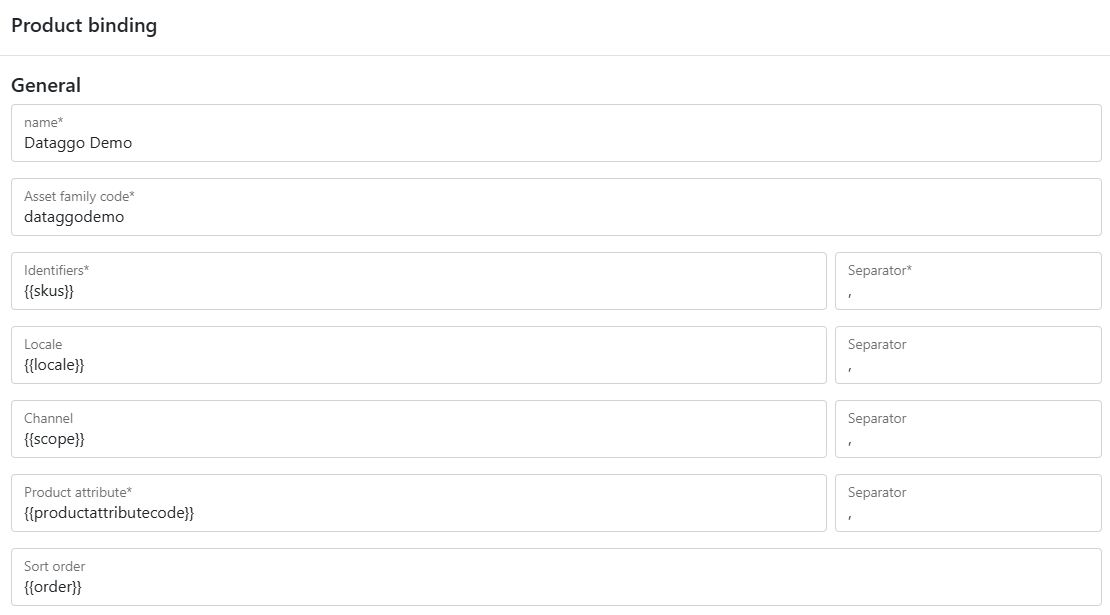
Example — for an asset family named dataggodemo:
- Set
{{skus}}as the product identifier (an asset attribute from thedataggodemofamily). - Define a separator (e.g.
,) if the attribute can hold multiple values. - Link the asset to multiple product attributes (e.g.
dataggo_images,extra_images). - Use
{{order}}to control the display order of assets within a product's asset collection.If no order is defined, new assets are appended to the end of the collection.
- Optionally restrict the binding to specific locales or channels.
Specific Parameters
When an asset is updated in Bynder and its meta-property containing product identifiers changes, you can control what happens to existing links.

| Option | Value | Behaviour |
|---|---|---|
| Remove assets from products | Yes | Unlinks the asset from a product when its identifier is removed from the meta-property |
| Fill only if empty | Yes | Only links the asset to a product if no other asset is already associated |
Advanced Settings
Advanced parameters allow you to filter which products a binding rule applies to, or assign specific fixed values.
The following operators are available for product filters:
| Operator | Description |
|---|---|
= | Equals |
!= | Does not equal |
EMPTY | Attribute has no value |
NOT EMPTY | Attribute has a value |
IN | Value is in a defined list |
NOT IN | Value is not in a defined list |
Example filter:
{
  "attribute_code": [
    {
      "operator": "IN",
      "value": ["value_code"],
      "locale": null,
      "scope": null
    }
  ]
}
⚠️ Performance note: Advanced filters can significantly impact job performance. Consult our team before applying or modifying these settings. If you need operators beyond those listed, please contact us.